
Docs
Users & roles
Invite teammates and control who can change Settings from Users (User Management).
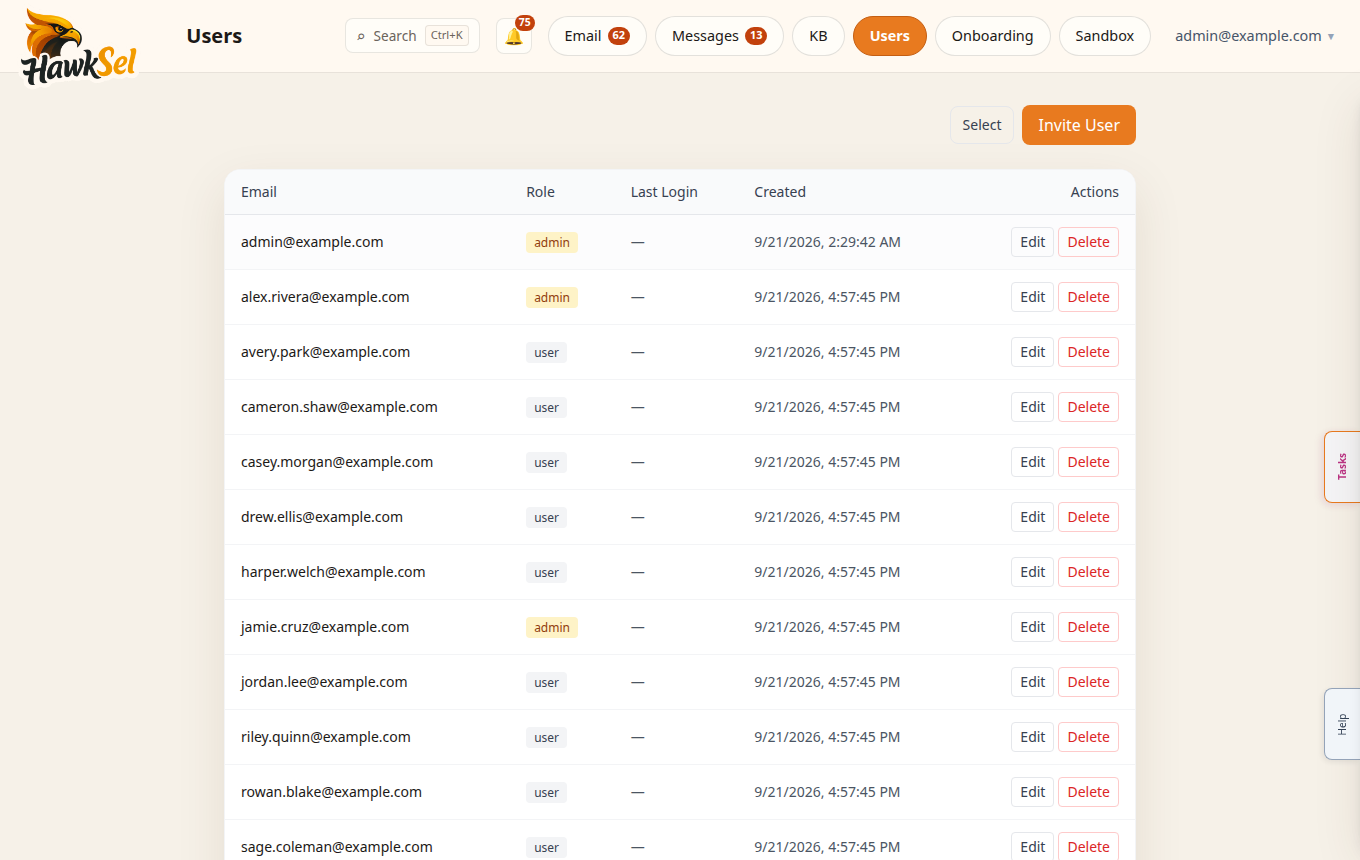
Open User Management
- Top nav: Users
- Or More → Users
- Page title: User Management
Invite a user
- Click Invite User.
- Enter their work email.
- Choose a role (user or admin).
- Send the invite. They set a password via the email link and join your organization.
If the email is missing, check spam or resend from User Management. Prefer invites over sharing passwords.
Roles
| Role | Typical access |
|---|---|
| user | Day-to-day Email, Messages, Knowledge Base, Sandbox (per org policy) |
| admin | User access plus Settings, Users, Billing, Audit log |
Exact permissions can vary; after inviting an admin, confirm they can open More → Settings.
Bulk actions
- Click Select on the users list.
- Choose one or more people.
- Open Bulk actions (for example Set role: user/admin).
- Click Cancel to leave selection mode.
Related
- Getting started — invite acceptance
- Settings — admin configuration
- Troubleshooting — login problems